
Published: Last updated:
TL;DR
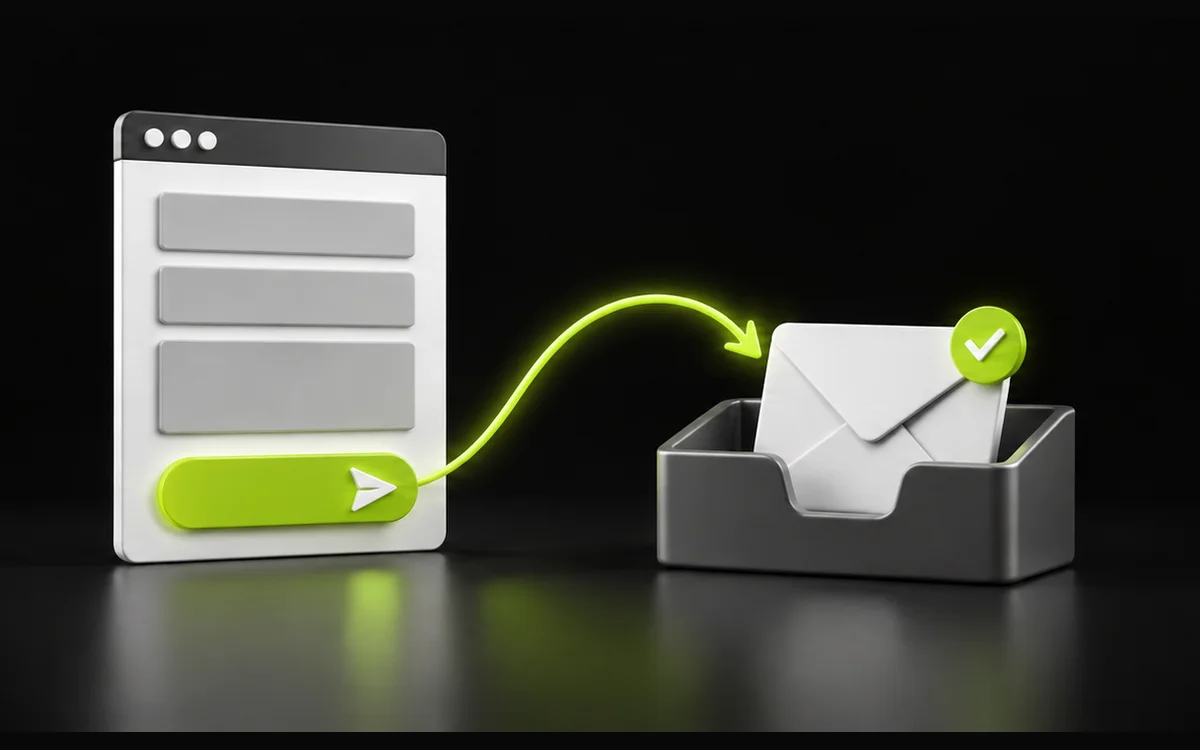
A contact form can show a reassuring confirmation while the enquiry never reaches the person who should answer it. Before spending more on bringing visitors to your website, test the full journey from the service page to the inbox and the reply.
This is a practical check for a small business website, especially after a plugin update, hosting move or change of email provider. It also makes a useful recurring task in a website management plan. Use clearly labelled test details so nobody mistakes the check for a genuine customer enquiry.
Start where a customer would start
Open an important service page on your phone and follow its enquiry button. Check that the button is easy to find, opens the intended form and leaves enough context for the customer to explain what they need. A visitor asking about a particular service should not have to work out which general department to contact.
Repeat the journey on a desktop browser and with keyboard navigation. Move through the fields using Tab and check that the current focus is visible. If a cookie banner, menu or chat widget covers the form or its submit button, record the problem and the device where it happens.
Ask for enough information to reply
Review every required field. Name, a reply address and a useful description may be enough for an initial enquiry; the exact questions depend on the service. Do not make customers provide an address, budget or telephone number unless your process needs it at this stage.
Use visible labels and explain unusual requirements before someone presses Send. Placeholder text disappears when a person types, so it should not be the only explanation of a field. The W3C accessible forms tutorial recommends short forms, clear control labels, useful instructions and feedback for both errors and successful completion.
Try submitting with a required field missing and an email address in an invalid format. The form should explain what needs correcting without wiping out the rest of the message. Then correct the error and check that submission works.
Confirm receipt in the real destination inbox
Send a message with a unique test reference, such as the date and the service you selected. Note the time. Check the actual inbox used by the business, including spam or quarantine, rather than relying on the website confirmation alone.
- Does the message arrive at the intended address?
- Are the name, contact details, selected service and full message readable?
- Does the subject make the enquiry recognisable among ordinary email?
- When you press Reply, does it target the test customer's address?
- If more than one team member receives enquiries, is responsibility for responding clear?
If nothing arrives, ask the person maintaining the website to inspect the form's delivery settings and the mail provider's delivery records. A success message in the browser does not establish that an email was delivered. Avoid repeatedly changing settings without recording the original configuration and the result of each test.
Check the confirmation customers see
After a successful submission, make it clear that the form was sent and what the customer should expect next. Only quote a response time the business can support. Give a working alternative contact route for someone whose request needs a different conversation.
If the form sends an automatic acknowledgement, verify that it arrives too. Check the sender name, subject, reply address and wording. Avoid including unnecessary copies of personal or sensitive information in automated messages.
Test the failure state with your developer in a controlled environment. Customers should receive a useful error and an alternative way to contact you if the request cannot be submitted. Do not deliberately interrupt the live service just to test this.
Keep spam protection usable
Spam controls are useful only if legitimate customers can still complete the form. Test the form with its normal protection enabled, using the same devices and browsers as the rest of your check. Look for challenges that fail to load, expire unexpectedly or cannot be completed with a keyboard.
Ask your developer to investigate delivery failures and spam separately. Turning off protection permanently can create a different problem, while making the form more restrictive may exclude real enquiries. Keep a dated record of the symptom before choosing a fix.
Measure completed enquiries carefully
If you measure enquiries in analytics, check that the conversion represents a successful submission rather than a click on the Send button. A click may happen before validation fails. Repeated clicks or reloading a confirmation page should not silently inflate the count.
Use a labelled test to compare the recorded event with an actual received message. Keep names, email addresses, telephone numbers and message contents out of analytics events and page URLs. Analytics consent and blocking can also affect recorded totals, so use the inbox or your enquiry system to check operational receipt.
Make the check a repeatable maintenance task
Keep a short log with the tested page, device, date, confirmation result, inbox result and any corrective action. Repeat it after changes to the form, email service, hosting or relevant plugins, as well as on a regular schedule suitable for the business.
If your website is attracting visitors but enquiries are inconsistent, I can review the contact journey as part of website maintenance or a web design project. A clearer form will not guarantee more leads, but a tested delivery route helps you avoid losing messages you should be able to answer.
Discuss your website enquiry journey, call 01226 697 325 or email info@phil-carr.co.uk.